
Using LC3Tools
Video: Using LC3Tools — Text Alternative
This video demonstrates the LC3Tools interface. Key areas shown on screen:
- Editor tab: write, save, and assemble
.asmsource files- Left panel: file controls — New, Open, Save, Assemble
- Main area: the assembly source code editor
- Simulator tab: load and run assembled programs on a virtual LC-3 machine
- Left panel: run controls — Open
.objfile, Run, Reload, step and debug options - Main area: registers (R0–R7), memory contents, and the I/O console
- Left panel: run controls — Open
- Settings panel (gear icon): Number View → Signed; Ignore Privileged Mode → enabled; Use Less Strict Assembly → disabled
LC3Tools contains an editor and hardware simulator
Editor
 LC-3 assembly programs will be written and assembled (similar to compiling in Java programming) using the Editor view
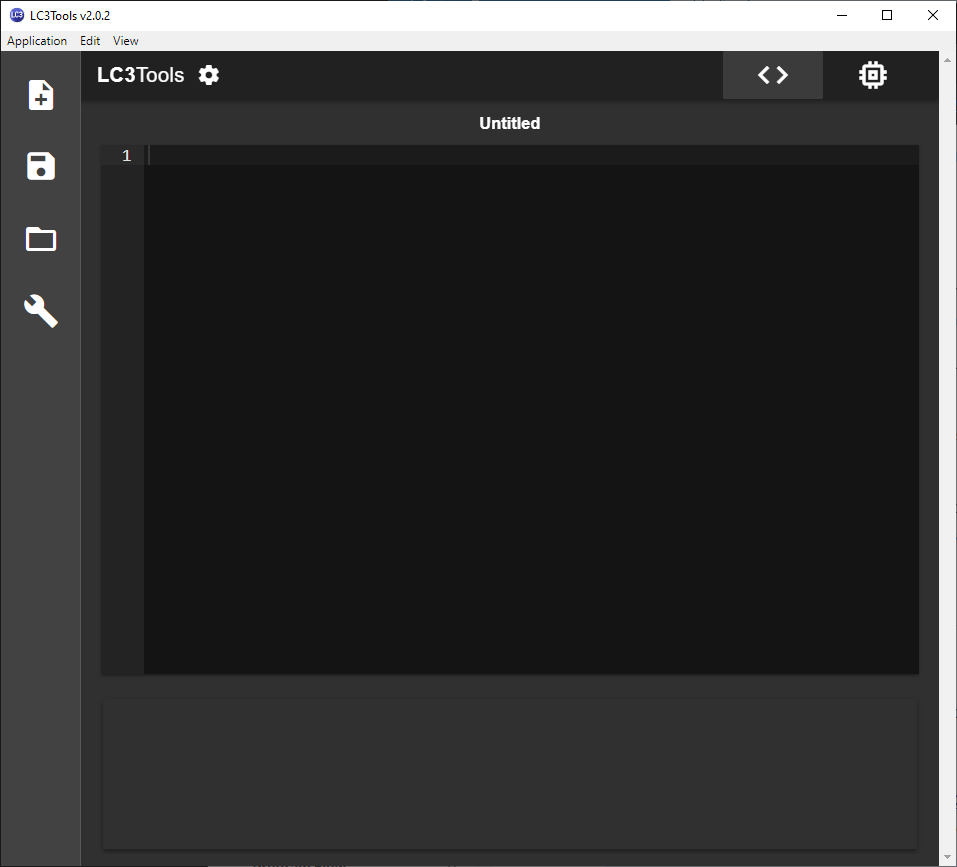
The editor has controls on the left side to create a new file, save a file, open an existing file, and assemble a file
The main content area of the editor is where the .asm (assembly source code) is viewed and modified
Simulator
 In order to run an assembly program, computer hardware or simulated hardware is needed. LC3Tools provides a simulation tool that behaves like a virtual Little Computer 3 (LC-3) machine
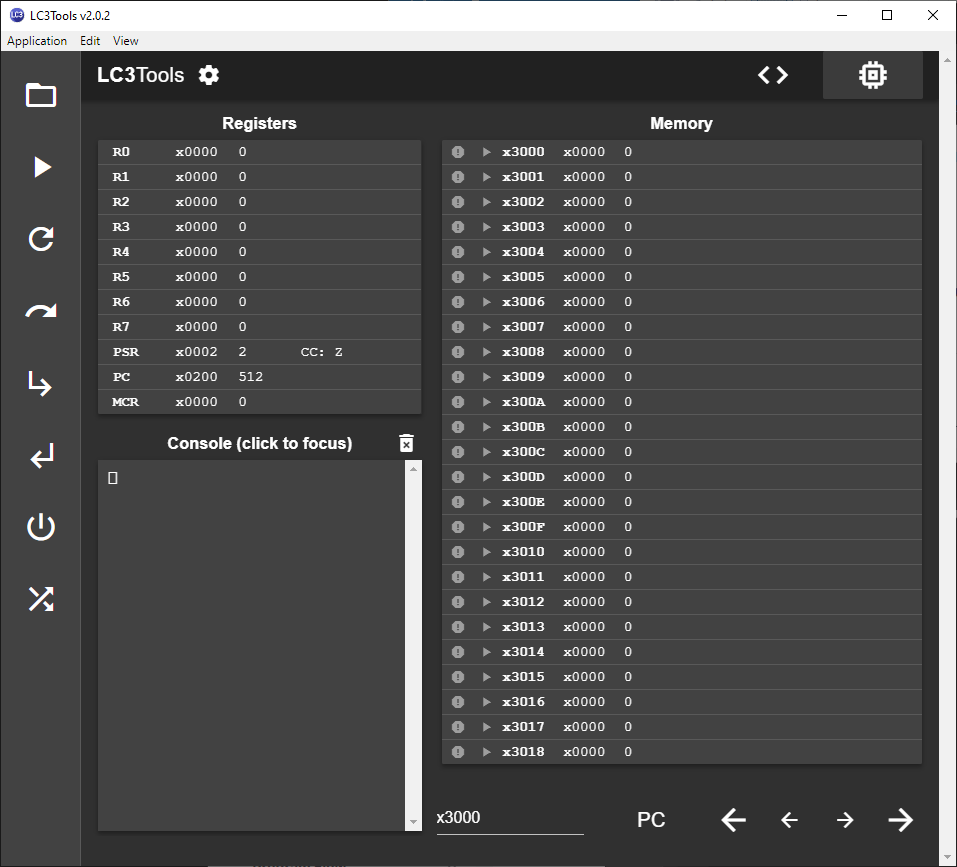
The simulator has controls on the left to open an existing .obj file (a complied assembly program), run and reload an .obj file, as well as debugging and hardware reset options
The main content area of the simulator contains hardware registers, memory, and Input/Output console
Before Your Begin
Click on the gear button and ensure that the following options are set in your LC3Tools installation: 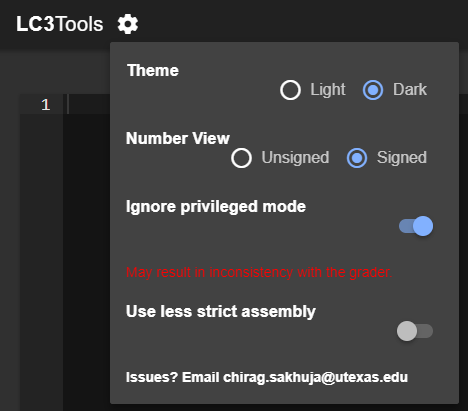
Number View is Signed
Ignore privileged mode is enabled
Use less strict assembly is disabled
You can set Theme to whichever style you prefer